
IlluxiLMS distinguishes between the learner view and the administrator view. If you have administrator rights on the portal, you’ll need to switch to the Admin interface to manage settings, users, and content. Here’s how to access the Admin Portal:
Log In to Your Account: First, log in to illuxiLMS with an account that has admin privileges.
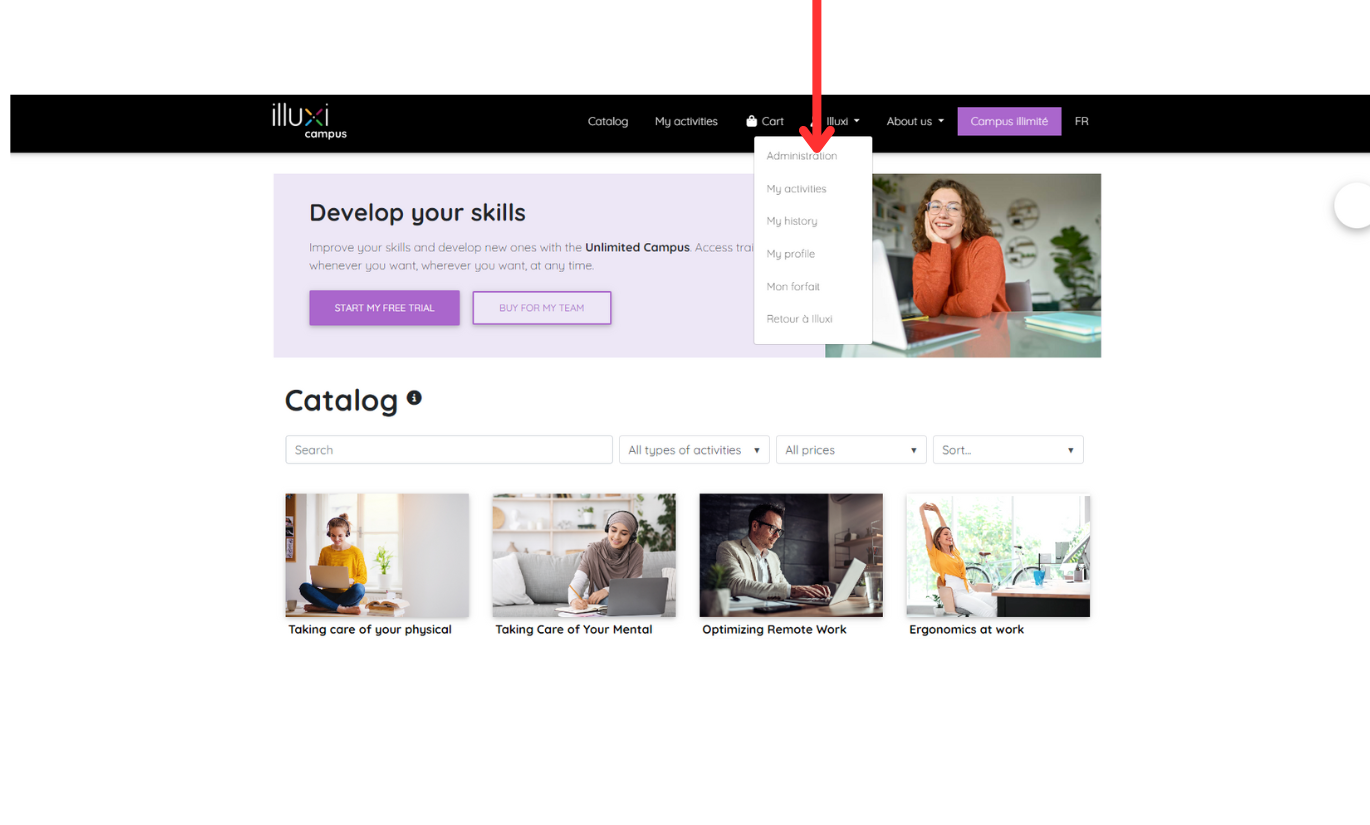
Open Admin Menu: Click on your name at the top right corner of the screen. A dropdown menu will appear.
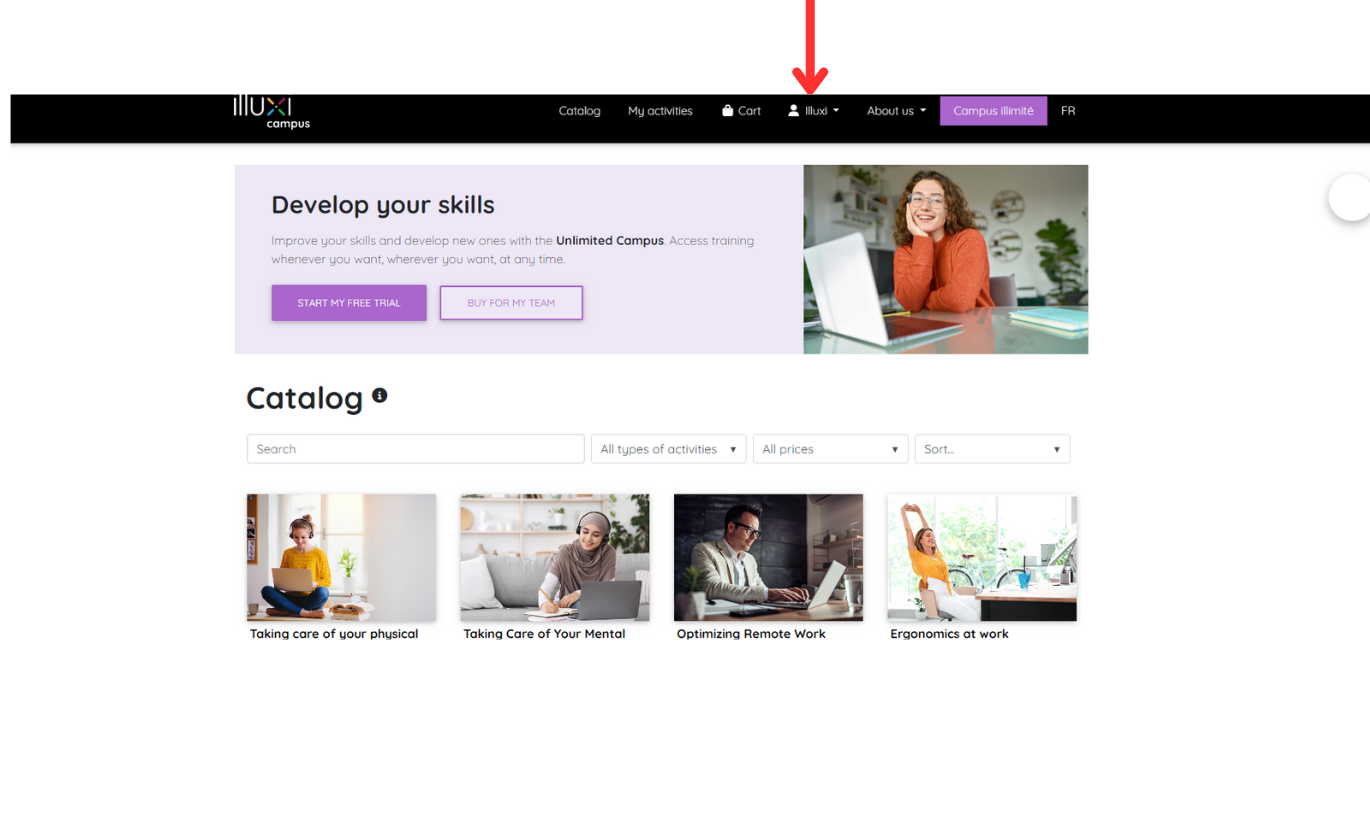
Select “Administration”: In the dropdown, click on Administration. This will switch your view from the learner dashboard to the administrator dashboard.
Verify Admin View: The interface will change to show administrative menus (often a sidebar or top menu with options like Users, Groups, Catalog, Reports, Settings, etc.). You are now in the Admin Portal and can perform management tasks.
If you do not see the “Administration” option in the dropdown menu, it means your account does not have administrator permissions. In that case, you’ll need to get an existing admin to grant you access (see How to Grant a User Admin Access below).
To return to the learner view from the admin side, you can usually click on the portal logo or a “Back to learner view” link, or simply click your name again and select an option like My Activities to exit the admin interface.